Getting started with OpenRouter
Create an account, add credits with a credit card, and create an API key. This is everything you need before using AI in i10.y's apps, shown with screenshots of the real pages.
Screenshots taken in October 2026. OpenRouter's pages may change. This guide is written by i10.y and is not made by OpenRouter.
What you need (about 10 minutes)
- A Google or GitHub accountAn ordinary email address also works
- A credit cardVisa, Mastercard, JCB and others. Start with $10
- Access to your emailA verification code is sent when you create a key
1. What OpenRouter is and how you pay
OpenRouter lets you use AI models from many companies — Google, OpenAI, Anthropic and more — with one account and one balance. i10.y's apps (such as the STT4U voice typing app) use these models for transcription and text clean-up.
- No subscription. You prepay a balance and only what you use is deducted. Months you don't use it cost nothing
- The AI fees don't go to the app's maker (i10.y). You pay OpenRouter directly
- Your account and balance can be shared with other apps that use OpenRouter
- Typical cost (STT4U, recommended settings): about $0.005 per minute of speech — about $1.50 a month if you dictate 10 minutes a day
2. Why use OpenRouter?
Most AI services are sold as monthly subscriptions. But do you actually use as much as you pay for?
Say you pay $20 a month for a subscription but only use about $3 worth. The other $17 just disappears. With OpenRouter you'd pay only the $3 you used — and $0 in months you don't use it.
- You pay per use, only when you need it. Each request costs about the same as the model maker's own price (the only fee is 5.5% when you add credits)
- So the less you use AI, the more you save
- On the other hand, if you use AI heavily every day, a subscription can be cheaper
- Even heavy users waste money on several subscriptions at once. Keep one main subscription, and pay per use for every other AI through OpenRouter — a good combination
- One balance lets you try models from many companies, without signing up or adding a card with each one
In short: whether you use AI a little or a lot, OpenRouter is worth having.
3. If English isn't your first language
OpenRouter's pages are in English only. Chrome and Edge can translate the page: right-click an empty part of the page and choose “Translate to [your language]”, or use the translate icon at the right end of the address bar. This guide always names the buttons in English and marks them with red boxes, so you can follow it either way.
Machine translation can be odd. While making this guide, “Close” was translated as “near” and “Monthly” as “monthly magazine” in Japanese, and a selected value sometimes didn't update on the translated page. If something looks wrong, switch back to the original page and look for the English button names shown here.
4. Create an account
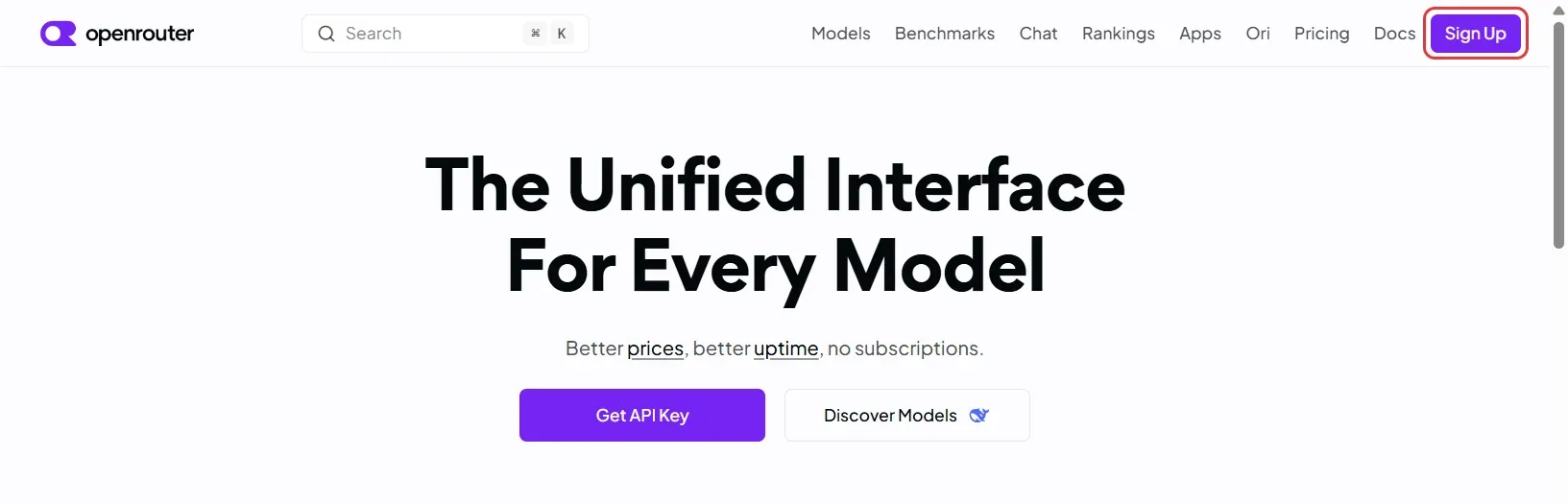
- Open openrouter.ai and click Sign Up at the top right.
Watch out for fake sites: make sure the address isopenrouter.ai
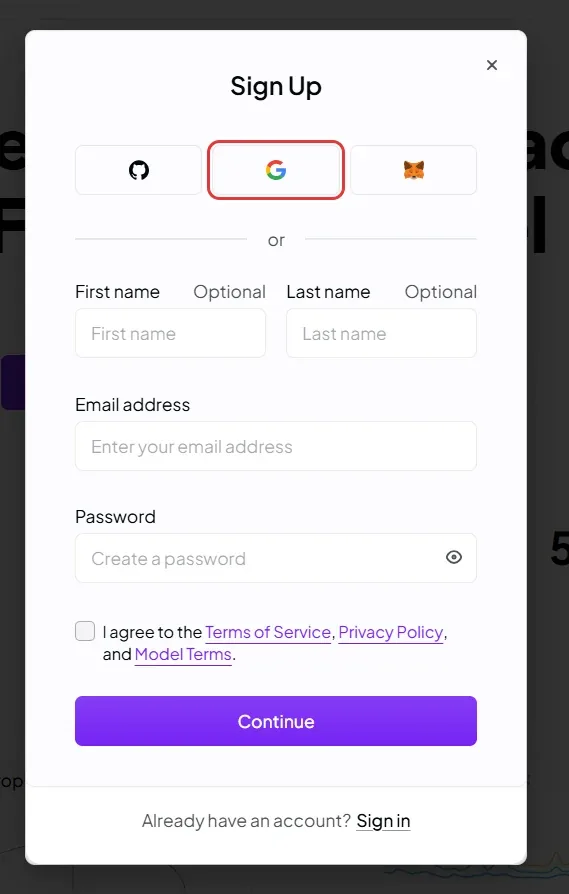
- The quickest option is the Google button (the G logo). Pick your usual Google account — no new password needed. GitHub (the cat logo) works the same way
- To sign up with email instead, enter your Email address and a Password, tick “I agree to…”, click Continue, and confirm with the email you receive
5. Add credits with a card
OpenRouter is prepaid: you add a balance first, and each AI request is deducted from it.
How much to add
| Amount | Fee | Good for |
|---|---|---|
| $10 | $0.80 (8%) | Recommended for your first top-up. Once you've added $10 or more in total, OpenRouter's free models allow 1,000 requests a day instead of 50 |
| $5 | $0.80 (16%) | Just trying it out. The fee is proportionally high |
| $15 or more | 5.5% | Topping up in bulk. Above the minimum fee, you pay the plain 5.5% |
The fee is 5.5% with a $0.80 minimum. Your balance doesn't expire until it's used up. Charges are in US dollars; your card company converts them to your currency.
Steps
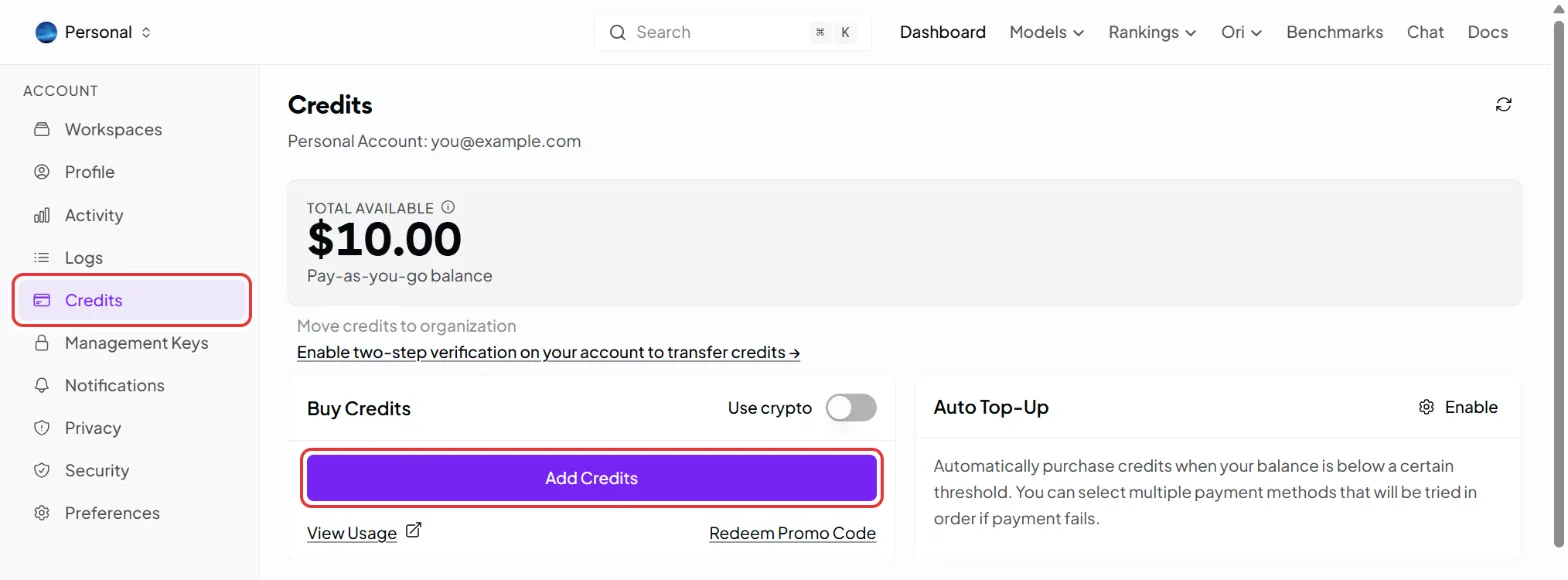
- Signed in, open openrouter.ai/settings/credits — or click Credits in the left menu
- Click Add Credits
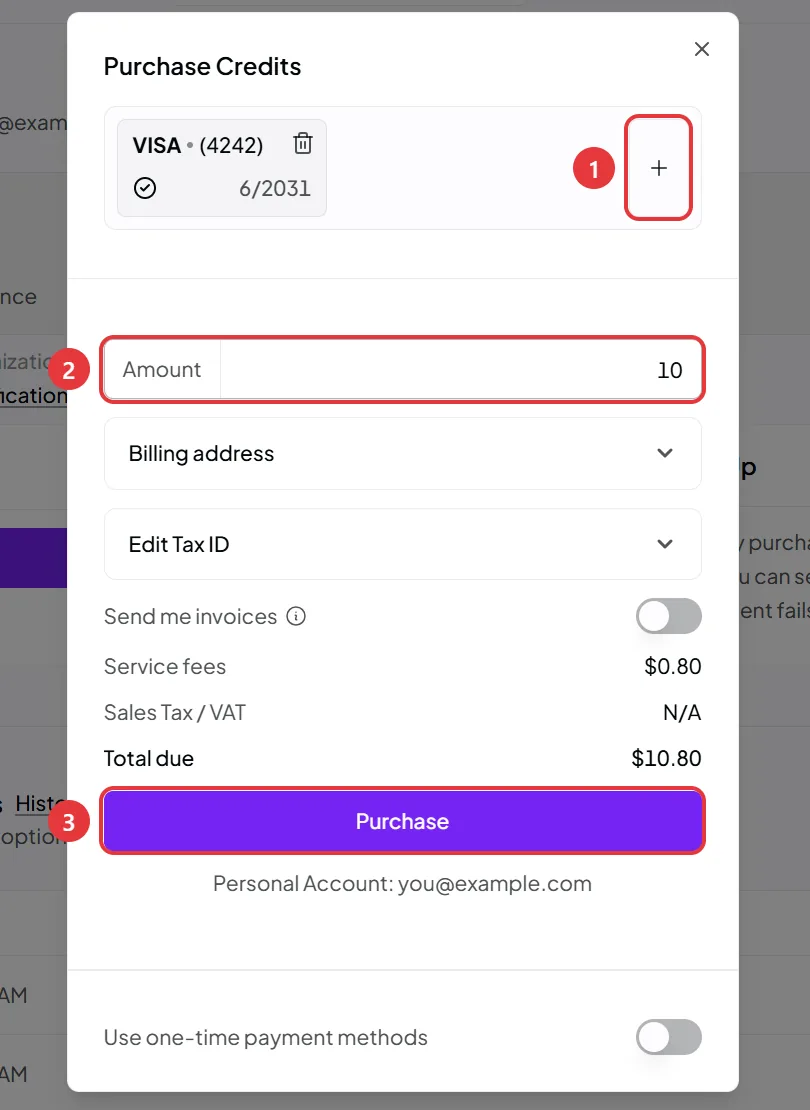
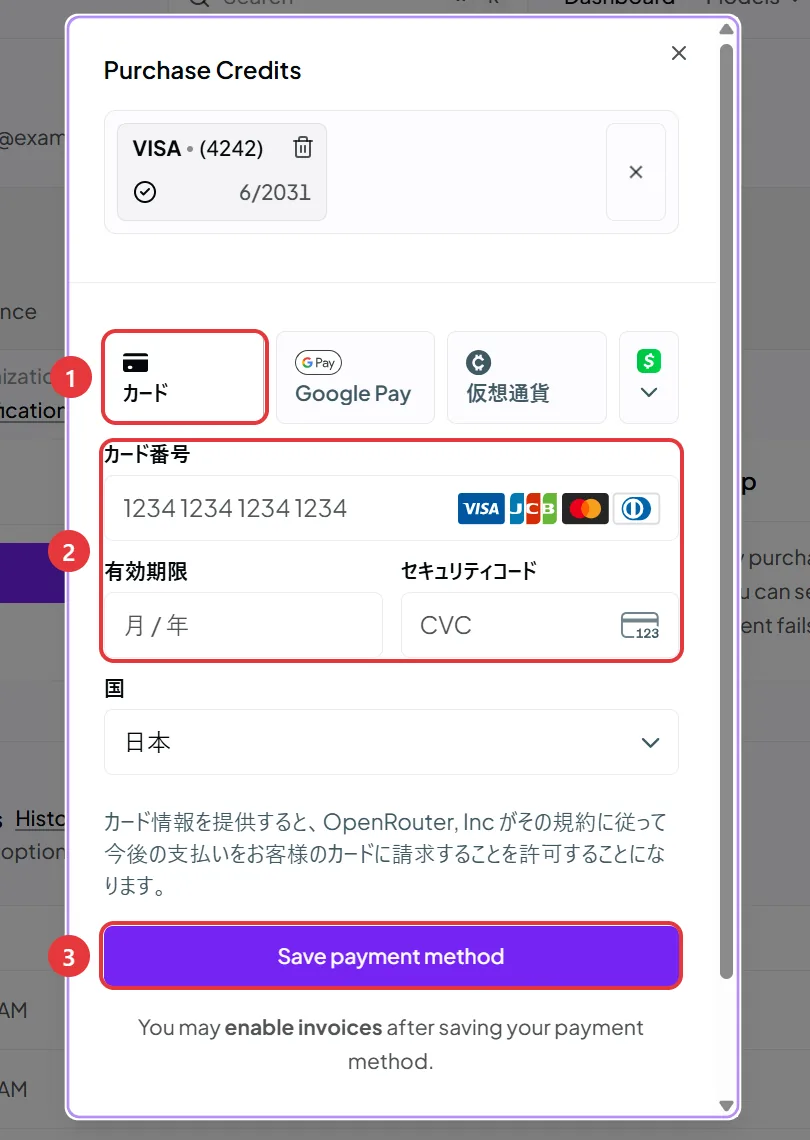
- The purchase dialog opens. The first time, no card is saved yet, so click ① + (Add payment method) and add a card (next picture)
- With a card saved, enter the amount in US dollars in ② Amount. The service fee and the total due appear below
- Click ③ Purchase. Your card is charged and the credits are added
Adding a card
- Choose ① Card (Google Pay is also available)
- Enter ② your card number, expiry date (MM/YY) and security code (the 3 digits on the back), and choose your country
- Click ③ Save payment method, then go back to the purchase dialog, enter the amount and click Purchase
- Billing address and Edit Tax ID are for adding your company name or address to receipts
- Auto Top-Up on the Credits page buys more credits automatically when your balance runs low. We suggest leaving it off at first until you know how much you use
- Your payment history and receipts are under Recent Transactions at the bottom of the Credits page
6. Create an API key
An API key is a spare key that lets an app use AI on your balance. It's a long string starting with sk-or-v1-, and you paste it into the app.
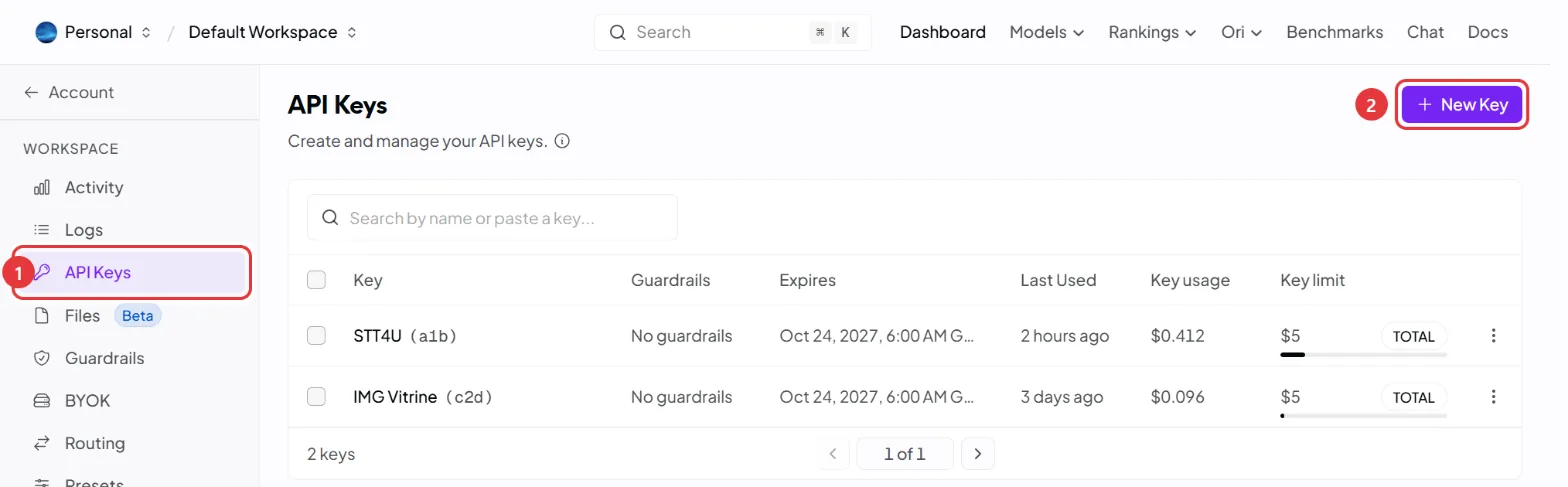
- Open openrouter.ai/settings/keys. In the left menu it's ① API Keys
- Click ② New Key at the top right
Recommended settings
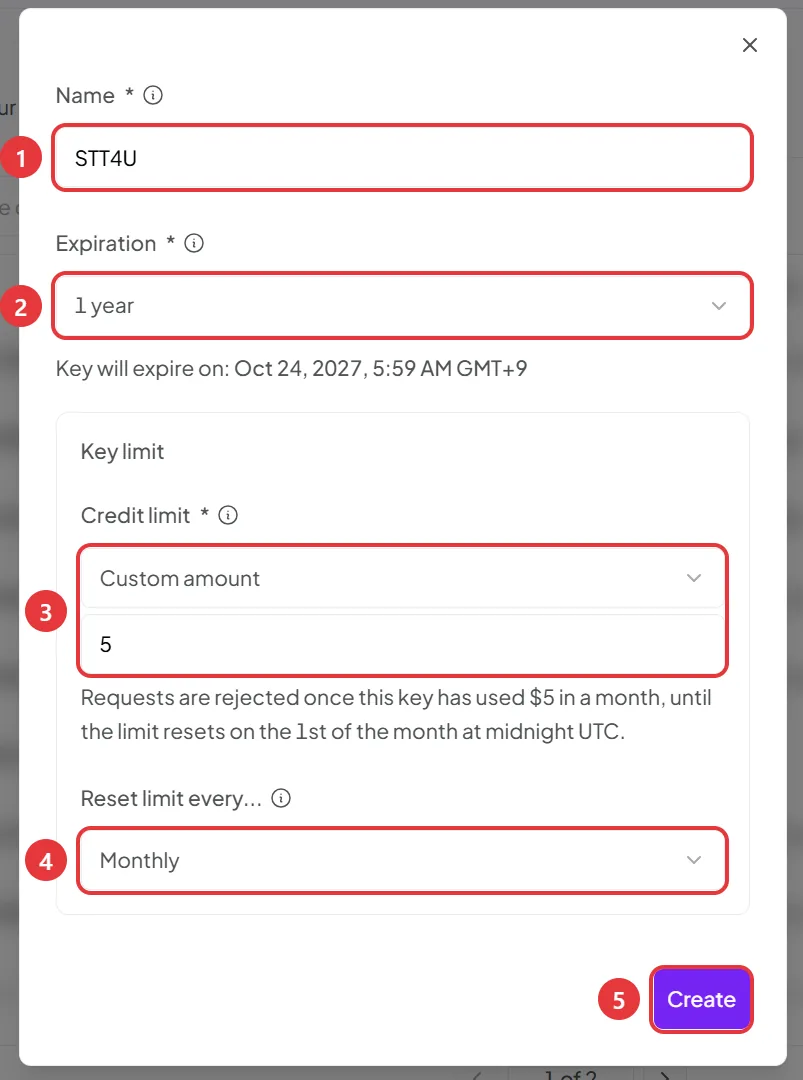
Fill in the dialog as below. With a spending limit and an expiry date, a leaked key can do only limited damage.
| Field | Recommended | Why |
|---|---|---|
| ① Name | The app's name (e.g. STT4U). With several devices, something like STT4U laptop | One key per app and per device shows what each one spends, and lets you delete just the one you no longer need |
| ② Expiration | 1 year | Stops a forgotten key from working forever. When it expires, create a new one and paste it in. Avoid “No expiration” |
| ③ Credit limit | Choose Custom amount and enter 5 (dollars) | The most this key can spend. $5 a month is plenty for voice typing, and you can raise it later |
| ④ Reset limit every… | Monthly | The limit in ③ resets on the 1st of every month, so it becomes “up to $5 a month” |
- Click ⑤ Create
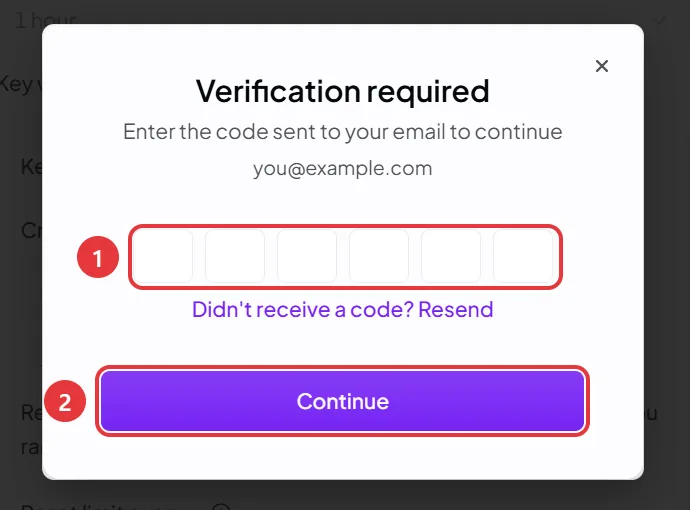
- You'll be asked for a verification code. OpenRouter (sender
notifications@openrouter.ai) emails a 6-digit code with a subject like “123456 is your verification code”. Type it into ① and click ② Continue
- Your key appears. Click the copy button next to ① (two overlapping squares) and paste it into the app right away
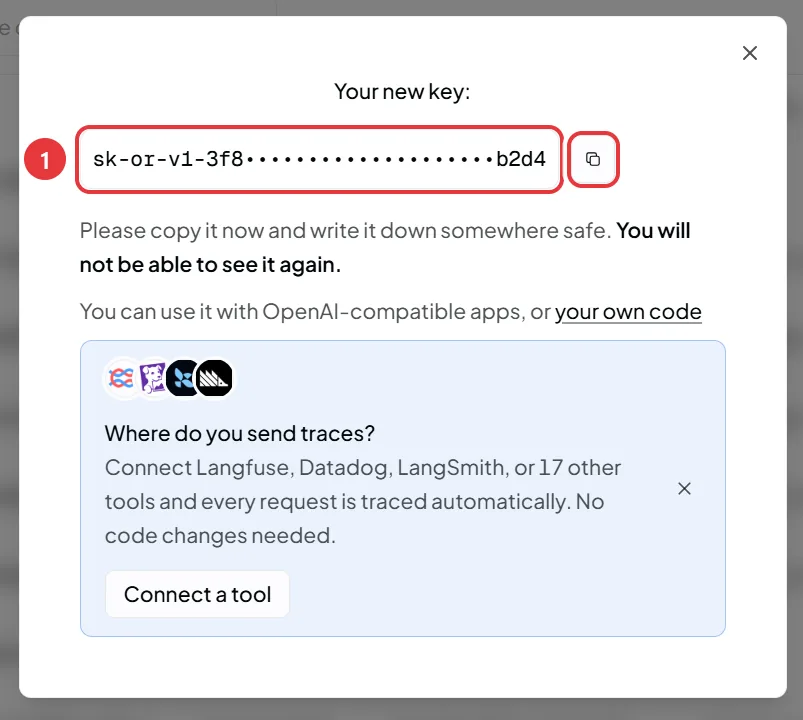
The key is shown only this once. You can't view it again after closing the dialog. If you forget to copy it, delete that key and create a new one (it costs nothing).
7. Paste it into the app
Paste the copied key into the app's API key field and save. That's it. Paste with Ctrl + V (on a phone, long-press and choose “Paste”).
- STT4U: paste it into “Set your OpenRouter API key” on the first screen and click Save. See the STT4U guide
Once pasted, you don't need to keep a copy of the key. If you reinstall the app, just create a new key and paste that.
8. Keep your API key safe
An API key is a key to your balance. Anyone who has it can use AI on your money. Treat it like a password.
Don't
- Don't send or show it to anyone — not in email, chat, social media, or a support request. i10.y will never ask for your key
- Don't capture it in screenshots you share
- Don't put it online. Keys pasted into shared documents or GitHub can be found and abused within minutes
- Don't leave it in a plain text note. If you want to keep it, use a password manager
Do
- Give each key a limit and an expiry date (see “Recommended settings”). A leaked key stops at its limit
- Use a separate key for each app and device, so you only have to delete one
- Turn on two-step verification under Security in the left menu, so your account itself is harder to take over
- Check Activity now and then for spending you don't recognise
- Leave Auto Top-Up off until you're used to it
If you think a key has leaked
- On the API Keys page, click ⋮ at the end of that key's row → Delete. A deleted key stops working immediately
- Create a new key and paste it into the app
- Check Activity for usage you don't recognise
Privacy of what you send
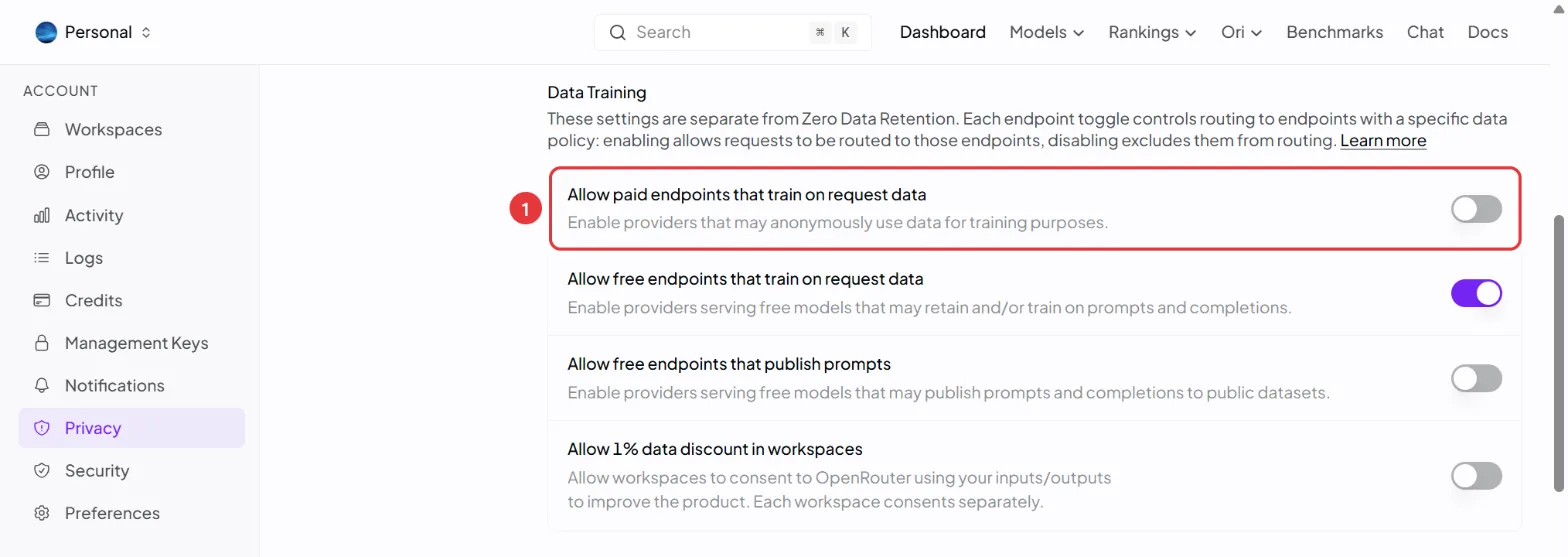
Audio and text from the app go through OpenRouter to the company running that model's servers, and the result comes back. OpenRouter itself doesn't store the content unless you turn on logging. Each model provider has its own policy; if you care, you can choose in the Privacy settings.
9. Troubleshooting
| Problem | What to do |
|---|---|
| The app says the key is invalid | It was pasted wrongly (extra spaces, or only part of it), or the key was deleted or has expired. Create a new key and paste it again |
| The app says there aren't enough credits | Add credits on the Credits page. Requests also stop when a key reaches its Credit limit — check that key's usage and limit on the API Keys page |
| The verification email doesn't arrive | Check your spam folder. The sender is notifications@openrouter.ai. After a short wait you can click “Resend” |
| The card is declined | Some cards block payments to overseas services. Check with your card company, or try another card or Google Pay |
| Can't find a button on the translated page | Switch back to the original page and look for the red boxes and English names in this guide |
Still stuck?
i10.y can't answer questions about OpenRouter itself — signing up, payments, cards, refunds and so on. OpenRouter is another company's service, and i10.y can't see inside your account or act on it.
The quickest help is usually an AI assistant. Paste the exact message you see on the screen and ask “What does this mean and what should I do?” — it will walk you through it in your own language.
- Google AI Mode (opens AI Mode in Google Search)
- OpenRouter's official documentation: openrouter.ai/docs
Never paste your API key or card number into an AI chat either. If you share a screenshot, check that no key or card details are visible.
For questions about i10.y's apps (for example, how the app behaves after you paste the key), use the report form on the app's page or email support@i10y.com (please don't include your API key).